

Publish a Portfolio Site for Free using GitHub Pages
- Create your Repository
- Clone your Repository
- Add your Files
- Push your Files to Repository
Portfolio is a compilation of the projects and the works you have accomplished. It is a great way to showcase your set of skills. One way or another, people struggle to put up a nice and aesthetically pleasing portfolio online. But how about publishing a website for it? Yes, you can publish a website solely for your portfolio, and it’s for FREE!
GitHub Pages allows users to publish their website for FREE. It is a hosting service by GitHub that takes your site files directly from a GitHub repo. GitHub is a platform for version control using Git. It is where users can collaborate on open-source projects, code, share ideas, and more.
Before we get to this process, you must first have a GitHub account and must have a basic knowledge about version control using Git and GitHub itself.
Create your Repository
Log In with your GitHub account. Create a repository named username.github.io. For this tutorial, I will be using my GitHub account with the username “janndelmark”, therefore, my repository must be janndelmark.github.io. This will serve as a link to your homepage. Then click the “Add Repository” button.
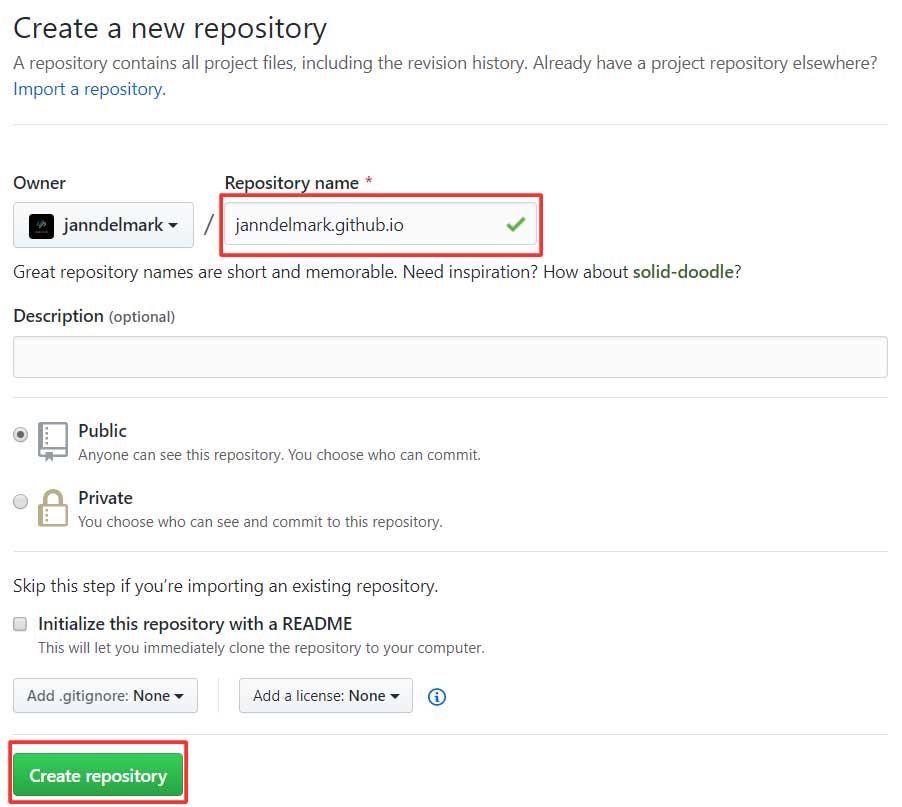
You could use other domains other than https://username.github.io/ by using the Custom Domains option. This can be enabled in the repository settings.
Clone your Repository
Create a folder where you want to store the project on your computer.
Launch your terminal/command prompt to clone your repository towards your local machine.
Follow the code below to clone the repository:
~ git clone https://github.com/janndelmark/janndelmark.github.ioKeep in mind to just replace the URL with your own 🙂
Add your Files
Copy your site files into your cloned repository folder. Just make sure that your homepage file is placed in the root of the folder.
Push your Files to Repository
Now, change your directory by entering this code in your terminal/command prompt:
~ cd janndelmark.github.ioRemember to replace the link with your own
Commit and Push your files to the Repository by following the code below:
~ $ git add --all
~ $ git commit "Initial Commit"
~ $ git push -u origin master
Enter your username and password if prompted after entering the last command. Then navigate to https://username.github.io/ to see your live site.
To see the result, this might take awhile but you MUST wait for 10-15 minutes. Then navigate to https://username.github.io/ to see your live site.
Cheers, you have successfully published your site using GitHub Pages! You can now use it to showcase your accomplishments by publishing your portfolio online!
If you encounter any problems publishing your website, you can send me a message here.
